


Thanks to the recent iOS 14.5 update, you can now initiate group FaceTime audio and video calls with Siri! This saves you the trouble of having to sort through your contacts to find the right group members. We'll show you how to start an Apple FaceTime group call by listing the names of multiple people or by saying a group name that's saved in your contacts.
Related: How to Activate Siri on the iPhone
First, Update to iOS 14.5
This feature only works in iOS 14.5 or later, so you'll need to update your iPhone to the latest iOS software prior to using the steps in this article. The update takes around two hours but is well worth it! Once you've successfully updated, you can continue with the steps in the next section to make a group FaceTime call using Siri!
How to Use Siri to Make FaceTime Group Call on Your iPhone
If you don't typically use Siri, I recommend checking to make sure "Hey Siri" is enabled on your iPhone first, and then you can use the following steps to initiate a group FaceTime call.
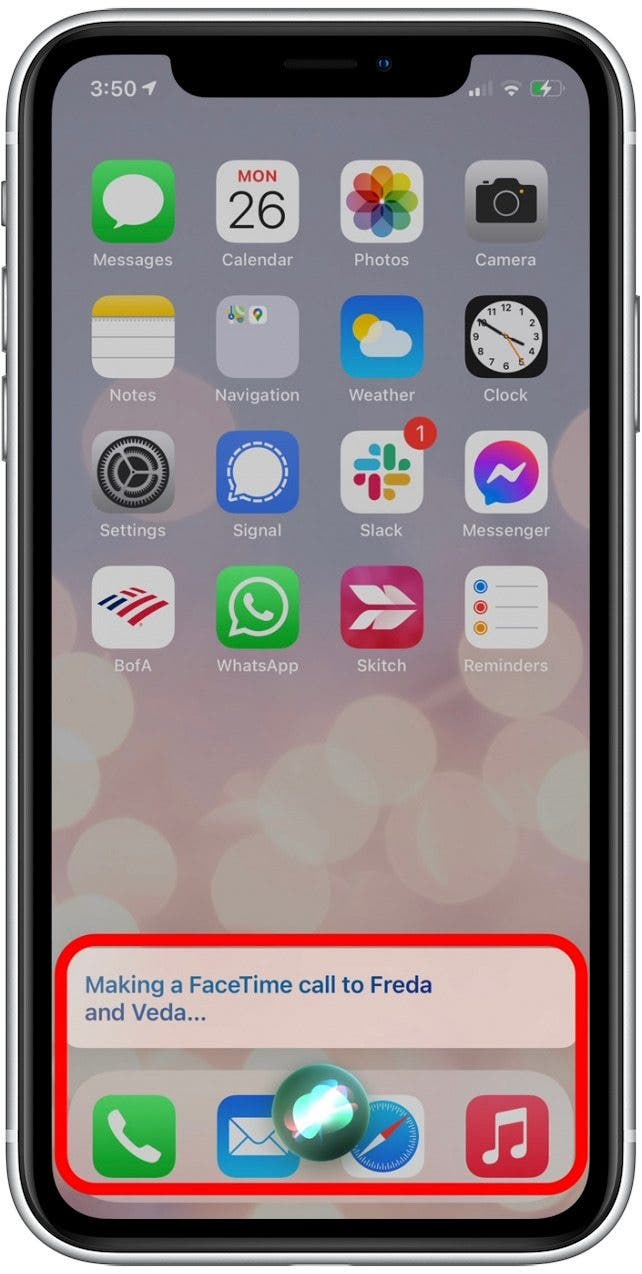
- To start a three-way FaceTime call, simply say, "Hey Siri, make a FaceTime call to [Person 1] and [Person 2]."
Enjoying Your Tip of the Day?
If you'd like to learn more about iPhone Life's premium paid subscription, click here
- You can also use a group name from your messages or contacts by saying, "Hey Siri, make a FaceTime call to [Group Name]."
- Siri will then start a group FaceTime call with each contact listed in that contact group.

- You can also specify whether you prefer an audio or video call via FaceTime. (If you do not specify, Siri defaults to a video call with your camera on.)
- To specify a group FaceTime call with audio only, say "Hey Siri, start a FaceTime audio call to [Group or Contact Names]"

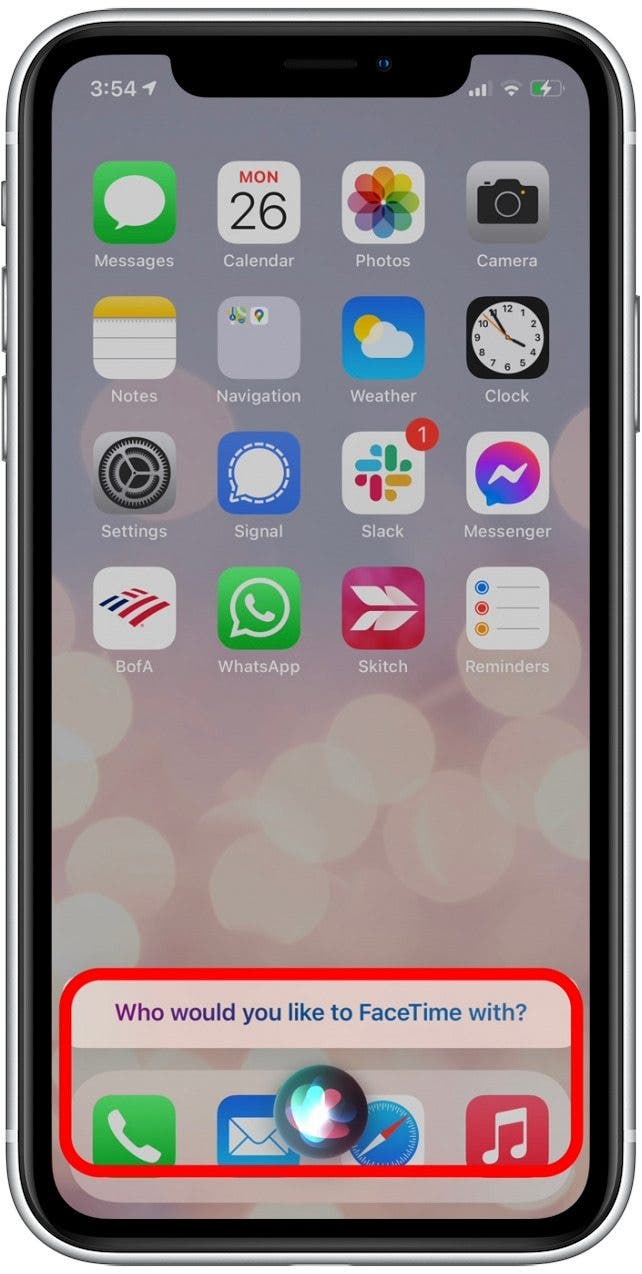
- It's important to say the name of the person or group as it is saved in your contacts. Otherwise, Siri will not be able to find the person to call and will ask again.
- If this happens, simply repeat the name as it is listed in your contacts, and Siri will launch the FaceTime call.
Making a FaceTime group call has never been easier, thanks to the iOS 14.5 update! Now you no longer have to search through your contacts for multiple people, you can have Siri do it for you instead.