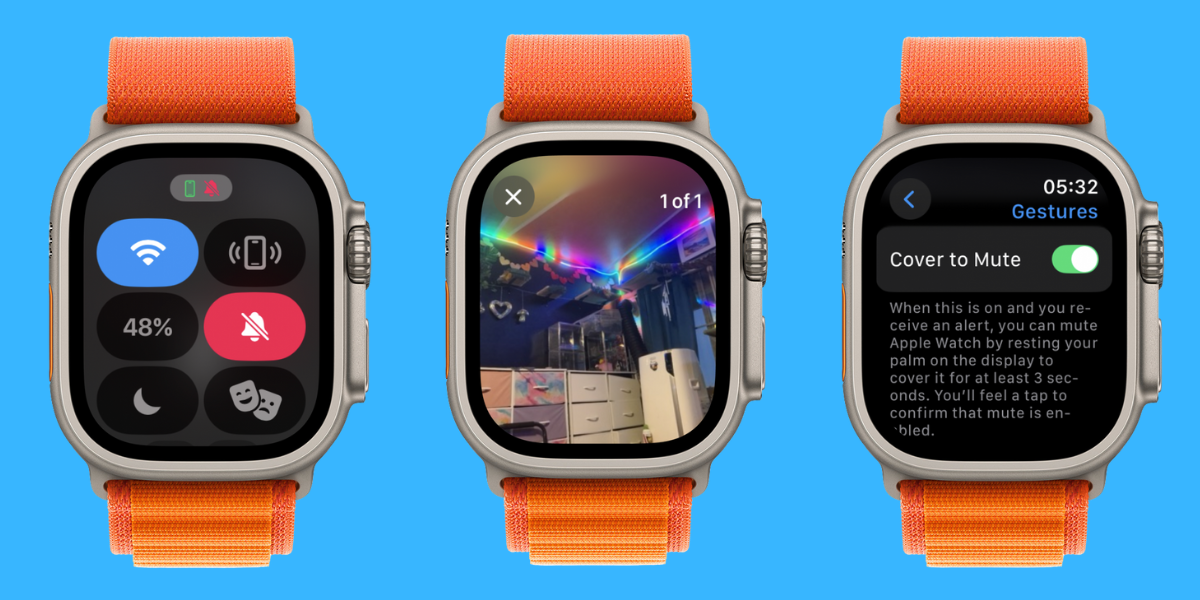
Hey, Reader! It’s Olena here. Do you know all that your Apple Watch is capable of? I’ll teach you how to use your watch’s vibrating alarm for gentler alerts, the quickest way to silence your watch, how to take photos using your watch as an iPhone camera remote, and more! The quiet alarms have been my secret weapon to never forgetting anything and always being on time, without anyone knowing that my watch is assisting me along the way.
This Newsletter is Brought to You By:
Incogni Logo
On The Watch ⌚
Everything Apple Watch: Tips, News, Deep Dives, Apps & Gear

Editor's Note

Hey, Reader! It’s Olena here.

Do you know all that your Apple Watch is capable of? I’ll teach you how to use your watch’s vibrating alarm for gentler alerts, the quickest way to silence your watch, how to take photos using your watch as an iPhone camera remote, and more! The quiet alarms have been my secret weapon to never forgetting anything and always being on time, without anyone knowing that my watch is assisting me along the way.

And once you’re finished reading, let us know which part of today’s newsletter you enjoyed the most, so we can give you more of the Apple Watch content you love!

Happy Reading!

Olena Kagui's picture
Olena Kagui,
On the Watch Editor at iPhone Life

PS. Missed our Apple Watch safety edition? Read it here to learn how to take care of your Apple Watch so it can take care of you!

IN THIS EDITION

  • Tips - Guilt-free streak pauses! ⏸️
  • Trivia - What does SE mean when it comes to Apple Watch models? ⌚
  • Deep Dive - 6 Hidden features you’ll wish you knew sooner 🤯
  • Reader Questions - Fix your Apple Watch not getting alerts! 🔴
  • Health Challenge Update - You can still join the May Challenge! 🏆
  • Fun and Interesting Tidbits - Apple wants everyone to delete this iPhone app 📱
🔥🤯 APPLE WATCH TIPS

Sick or injured? Pause your activity rings but keep your streak!

📖 Listen to your audio books comfortably from your wrist, no phone needed.

Change your Apple Watch face based on your mood or the occasion.

Here’s the Real Way to Stop Spam

Your information is being bought and sold by data brokers on a daily basis, which is how spammers get your email address and phone number. Incogni works to get you off those lists, securing you a quiet phone and online privacy. Sign up today and get 55% off with code IPHONELIFE.

🏆😎 Trivia

By now we’re all familiar with the diminutive Apple Watch and iPhone models bearing the title “SE.” But can you tell me what SE stands for?

  • ✨ Special Edition
  • ✨✨ Small Edition
  • ✨✨✨ Simple Edition
  • ✨✨✨✨ Slim Edition

🏆 Did you get it right? Scroll down to find out! 🏆

🌊🤿 DEEP DIVE: 6 Hidden Apple Watch features you didn’t know you needed

I’ve been obsessed with my Apple Watch for over half a decade and I even wrote the iPhone Life Apple Watch guide for Insiders. Despite all this, I still occasionally stumble upon a feature that blows my mind and changes the way I use my watch. My favorite hidden gems are pinging my iPhone to find it, enjoying discreet vibrate-only alarms, and controlling my phone’s Camera app from my wrist!

1. How to Ping Your iPhone with Your Watch (and Vice Versa)

It is way too easy to misplace your iPhone, but you can quickly ping it from your Apple Watch to find it faster. Touch the Side button and tap the iPhone pinging icon to make a sound on your phone, even if it is silenced. If your phone is nearby, you will also see the precision Find My directions to your phone. More recently, Apple introduced a feature that lets you ping your Apple Watch from your iPhone—you can even add the icon to your iPhone’s Control Center!

2. Set Discreet Vibrate-Only Alarms

When you set up an alarm, you can go into the settings and change it to be haptic rather than sound. The benefit of haptic alarms is that they are soundless and will vibrate gently on your wrist—this is a much better way to wake up and lets you set reminders for yourself without disturbing anyone around you.

3. Control Your iPhone’s Camera from Your Watch

Say goodbye to balancing your iPhone on a table (or branch) then running toward your friends and hoping you make it before the countdown. You can take much better group photos by using your Apple Watch as an iPhone camera remote. You can still use a three-second timer so that you can tap the shutter button on your wrist, then lower your arm and do a pose. You can then view the photo on your wrist to check if it turned out well or if you need a re-do. I use this feature often for both group photos and selfies when I’m somewhere by myself and can’t find a stranger to snap my pic.

4. Silence Your Watch with Your Palm

It can be so embarrassing when your watch receives a phone call while you’re in a meeting or at an inappropriate moment. It can take a while to silence it the traditional way, especially when you are flustered. Fortunately, there is a setting that lets you mute your watch by covering the screen with your palm—a natural gesture that doesn’t require you to look at your watch at all!

Not Using a VPN? You’re More at Risk Than You Know

Have you ever used Wi-Fi outside of your home? Any time you are connected to the internet, your information is at risk of being tracked or hacked. A VPN helps keep your surfing anonymous to keep your data out of malicious hands. Sign up for NordVPN and boost your online security for only a few dollars a month!

5. Add Steps to Your Apple Watch Face

Unlike a Fitbit, the Apple Watch doesn’t have a built-in feature to display your steps on your watch face. However, the free third-party Pedometer++ app offers complications that display your steps and you can customize them to suit your needs. That way you can track your steps directly from your watch face!

6. Emergency Flashlight with Three Modes

Did you know that your Apple Watch has a flashlight? It isn’t perfect and won’t replace the real thing, or even your phone flashlight. However, it is a great option in a pinch. There is a white option, red option (that won’t attract animals if you are using it while lost outside), and a white flashing option.

What is your favorite hidden Apple Watch feature? Email OntheWatch@iphonelife.com and let me know!


🤔❓ READER QUESTIONS

You asked and we answered!

Q: When I receive a text on my watch and phone, the messages icon does not show a red badge on my watch, only my phone. - Steve W.

A: Hello Steve! This is an annoying occurrence but it is by design. If your iPhone is unlocked, you will only receive the text (or call) on your phone. If it is locked, you’ll receive it on your watch! Lots of users complain about this and we’re not sure why Apple won’t allow for an option for those who want to receive alerts on both devices if they wish—although practically, it could get a bit annoying.

✉️ Email your questions to OnTheWatch@iPhoneLife.com and we might answer them in a future edition! Questions may be edited for clarity and length.

Capture More Than Just a Photo

If your pictures of stunning vistas or joyful family events have ever fallen short of your lived experiences, iPhone Photography School is here to help. In their Capture It All Course, you’ll learn to take high quality iPhone photos with help from expert instructors. Sign up today!

👟💪 iPhone Life Health 👟Challenge Update

Our May Challenge is in full swing but you can still join! As long as you’ve worn your Apple Watch, the free Challenges app will give you points for all the exercises you’ve already done this month—but there is a deadline to join, the cut off is a week before the challenge ends on May 31, but it’s best to join right away so you don’t forget!

It’s a great way to come together as a community and motivate each other to reach our health goals by staying active. We’ll be doing a weekly accountability post for premium subscribers in our Facebook group to share struggles and tips and support each other on our journeys.

To join the challenge, download the free Challenges app on your iPhone and enter the code XM76 when prompted. Need help? This article explains the steps and tells you more about the app.

Are you enjoying the challenge? Do you have any suggestions for how we can make it even better? Email OntheWatch@iphonelife.com or comment on the weekly thread in our Facebook group and let me know!

🥇 CHECK YOUR TRIVIA ANSWER 🥇

The correct answer is: ✨ Special Edition

If you opted for an iPhone or Apple Watch SE, don’t call it the “budget option,” call it the special edition!

🕺📰 OTHER FUN AND USEFUL TIDBITS

🏅 PREMIUM CONTENT

If you enjoyed this newsletter, you’ll love our Photo Management Class on iPhone Life Insider!

While the live course is already in progress, you can watch the replays and learn in your own time. The course covers how to:

  • Effortlessly Organize Photos - Learn your iPhone’s powerful smart sorting functions to find the photos you’re looking for in seconds.
  • Customize Your Photos App - Make the redesigned layout work for you.
  • Find Your Loved Ones Quickly - Find photos of the people and pets you love using Apple’s AI features.

Join the Insider community today and save 30 percent!

FIRST TIME READING?

Sign up here to get the On the Watch newsletter in your inbox every other week.

More from our sponsors

Follow iPhone Life

iPhoneLife Logo
Copyright © 2025 Mango Life Media LLC. All Rights Reserved.
Mac, iPad, iPhone, Apple TV, Apple Watch, AirPods, macOS, iPadOS, iOS, watchOS, and Apple are all trademarks of Apple, Inc.
You have opted in to receive this email from iPhone Life magazine
To stop receiving these emails, you may:
Mango Life Media LLC | 402 North B Street | Fairfield, IA 52556