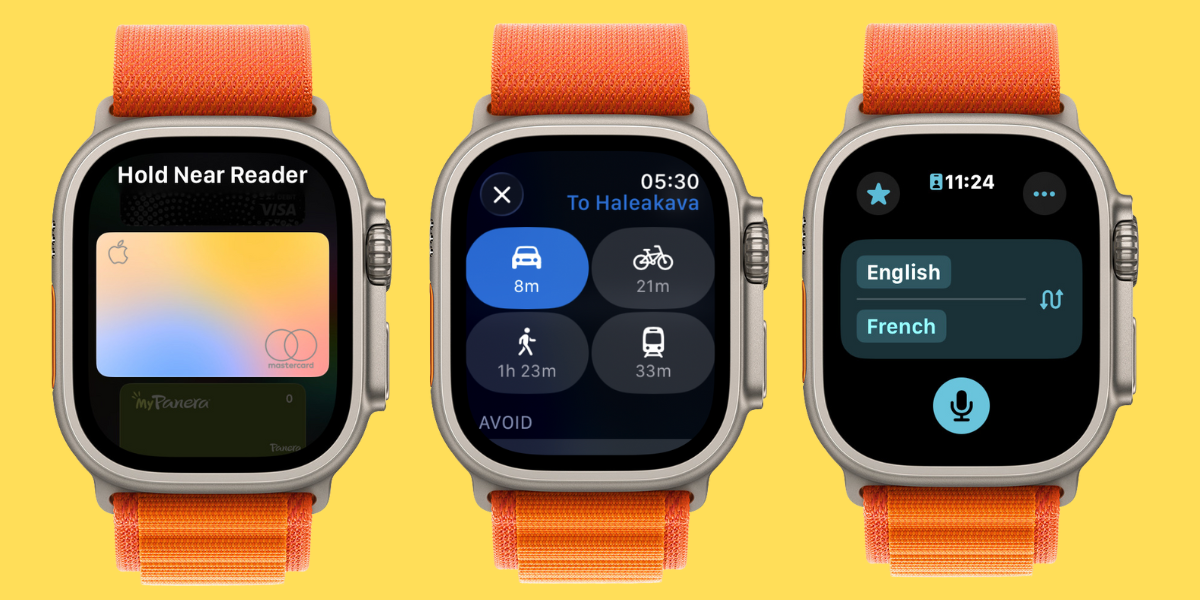
Your Apple Watch can make traveling easier — whether you are strolling through your neighborhood or traveling abroad to another continent. We’ll teach you how to use your watch for navigating, paying, translating, and even taking photos!
1. Get Vibrating Directions on Your Wrist
Did you know that you can see Maps directions on your watch? It will even vibrate whenever it’s time for you to make a turn! This isn’t just convenient, but it might be safer too. I recently took a self defense class where the instructor pointed out that looking at your phone not only distracts you, but makes you look like an easier target for opportunistic criminals.
2. Get Public Transit Directions on Your Watch
The Maps app isn’t just good for driving and walking directions, it can help you take the bus, subway, or the public transportation option of your choice. Not only will it give you the precise transit directions, you can even store your transit cards on your watch.
3. Store Cards, Tickets & More In Your Digital Wallet
Another great thing about your Apple Watch is that it almost replaces your physical wallet. It not only stores Apple Cash, credit cards, and certain transit cards, but it can also keep track of your boarding passes, hotel keycards, and even concert/event tickets — sometimes including directions on how to park, get to your seat, etc. Once watchOS 26 comes out this fall, U.S. citizens will even be able to have their passport in their Apple Wallet!
4. Translate on the Go
If you’re traveling abroad or run into someone who speaks a different language, your Apple Watch can make communicating with them easy. The Translation app works great on your watch, and if you have an Ultra model, it can even be the default for the Action Button. Once you update to watchOS 26 this fall, you’ll also be able to use the Live Translation feature within the Messages app.
5. Take the Perfect Selfie or Groupie
Your watch has a built-in remote to your Camera app on your iPhone. This means that you can set up your phone, pose, and use your watch to capture the shot you want—you can even see what your iPhone sees from your wrist! This is great if you feel uncomfortable asking someone else to take your picture, or if you are alone or want a group pic without leaving anyone out. It is common for your watch screen to be black when you first open the Camera app. Try closing it and trying again or restart your devices to fix this glitch.
What is your favorite Apple Watch travel tip? Or do you have one that I missed? Email OntheWatch@iphonelife.com and let me know!