


Have you ever had an alert go off on your Apple Watch that took you just a little too long to turn off? Here's how to enable Cover to Mute on your Apple Watch, so you can turn off alerts without having to even look at your watch! This is a good tip to use if you just want to mute alerts as needed instead of putting your Watch on Silent Mode. Note that if you use this tip while receiving an incoming call, the watch will be muted but may still vibrate if those settings are enabled.
Why You'll Love This Tip:
- Quickly mute your Apple Watch with a very simple and natural movement.
- Turn on Cover to Mute to silence your Apple Watch without having to look at it or tap any buttons.
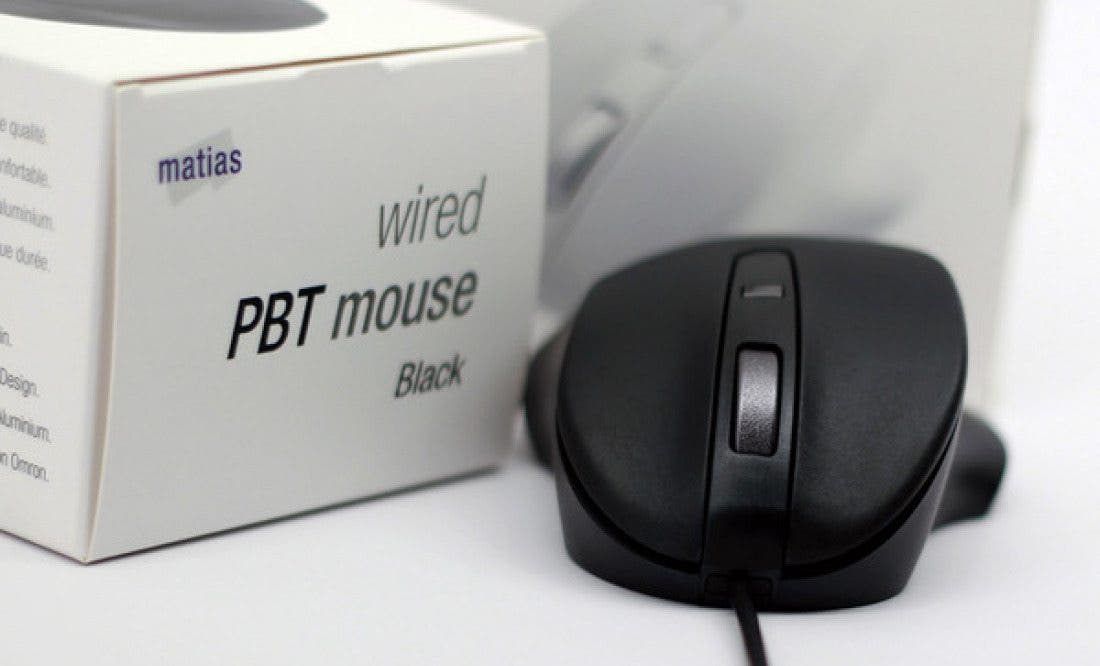
The Wired PBT Mouse by Matias tops our list of best computer accessories. Instead of using cheap ABS, these high quality mice feel luxurious with a unique satin feel and aluminum scroll wheel. Try it today!
How to Mute Apple Watch with Cover to Mute
System Requirements
This tip was performed on an iPhone running iOS 17 and an Apple Watch running watchOS 10. Learn how to update to the latest iPhone and Apple Watch software.
Once you enable Cover to Mute, you will be able to silence your Apple Watch by covering it with your palm. Note that if you use this tip while receiving an incoming call, the watch will be muted but may still vibrate if those settings are enabled. If you like learning cool tips about your Apple devices, be sure to sign up for our free Tip of the Day! For this tip, you'll need to enable Cover to Mute from your iPhone.
-
On your iPhone, open the Watch app.

-
Tap Gestures.

-
Toggle on Cover to Mute.

Enjoying Your Tip of the Day?
If you'd like to learn more about iPhone Life's premium paid subscription, click here
As the directions under the toggle state, you'll be able to mute an alert on your Apple Watch by covering the face with your palm for three seconds. Your watch will confirm the mute action with a small vibration. Having Cover to Mute enabled will allow you to quickly silence an alert without needing to press anything on your Apple Watch!